Multi-Factor Authentication (MFA) adds an extra layer of security to user accounts. Instead of relying solely on a username and password, users must provide a second form of verification during login. This significantly reduces the risk of unauthorized access, even if a password becomes compromised.
On Fellow Community, MFA is implemented using industry-standard authenticator apps and can be configured to meet your organization's security requirements.
What is MFA?
MFA requires users to verify their identity using two factors:
- Something they know: their email address and password.
- Something they have: a mobile device running an authenticator app.
After entering their login credentials, users are prompted to enter a temporary verification code generated by their authenticator app. Access is only granted when both authentication factors are successfully validated.
How MFA Works
Fellow Community uses the industry-standard TOTP (Time-based One-Time Password) protocol.
During the initial setup:
- The user logs in with their email address and password.
- A QR code is displayed.
- The user scans the QR code using an authenticator app.
- The authenticator app is linked to the user's account and starts generating temporary 6-digit verification codes.
- The user enters one of these codes to complete the configuration.
After setup, users will be asked to provide a valid verification code each time MFA is required.
Most modern authenticator applications support the TOTP standard, including:
- Microsoft Authenticator
- Google Authenticator
- Authy
- 1Password
- LastPass Authenticator
MFA and Single Sign-On (SSO)
MFA within Fellow Community only applies to users who authenticate using an email address and password.
Platforms using SSO only
If your platform uses Single Sign-On (SSO), authentication is handled entirely by your Identity Provider (IdP), such as:
- Microsoft Entra ID (Azure AD)
- Okta
- Google Workspace
- Keycloak
- Other SAML or OpenID Connect providers
In this scenario, MFA must be configured and enforced within the Identity Provider.
Platforms using both SSO and email/password login
Some organizations use a hybrid setup where:
- Certain users log in via SSO.
- Other users log in directly using an email address and password.
In this case:
- MFA for SSO users should be configured in the Identity Provider.
- MFA for email/password users can be enabled within Fellow Community.
This allows a consistent level of security regardless of the authentication method used.
Enabling MFA on Your Platform
MFA is a standard feature available on all Fellow Community platforms at no additional cost.
To enable MFA, please contact your Product Consultant or Account Manager
The feature must be activated by Fellow Digital before it becomes available on your platform.
MFA Configuration Options
Once enabled, MFA can be configured in different ways.
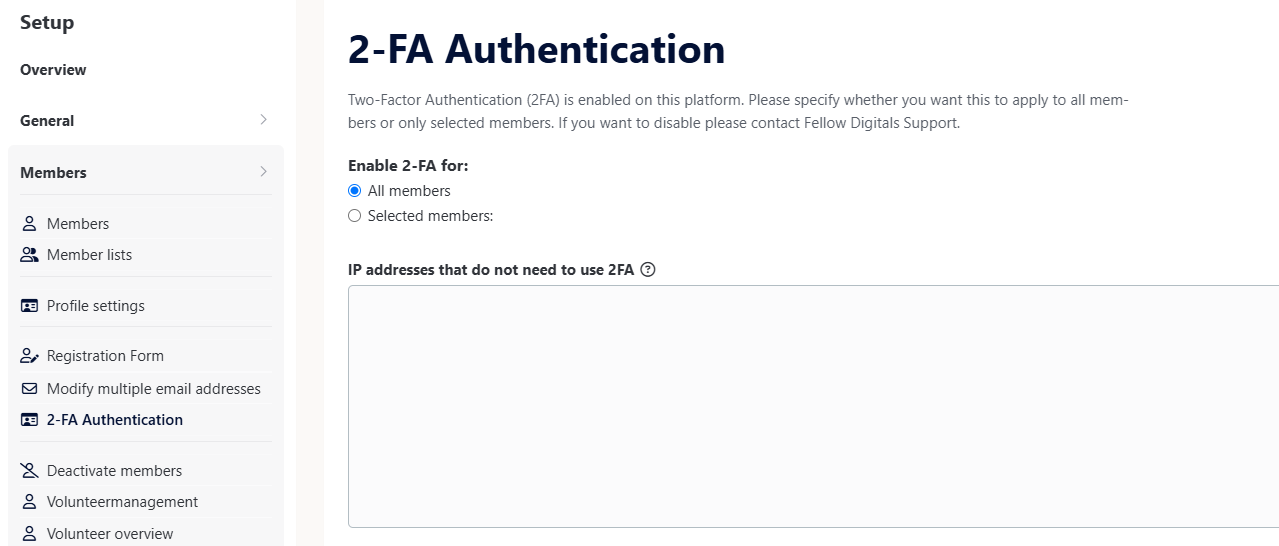
Option 1: MFA for all users
MFA can be enforced for all users who log in using an email address and password.
This configuration provides the highest level of account security and minimizes the risk of unauthorized access.
Option 2: MFA for selected users
MFA can also be enabled only for specific users.
A common use case is requiring MFA for:
- Webmasters
- Administrators
- Moderators
- Other users with elevated permissions
When new users are added to a group that falls under your MFA policy, MFA must be enabled for those users individually.
Excluding Trusted IP Addresses
Fellow Community offers the option to exclude specific IP addresses from MFA requirements.
Example use case
Users connecting from a trusted corporate network may not be required to enter an MFA code, while the same users will be challenged for MFA when working:
- From home
- From public Wi-Fi networks
- While travelling
This provides a balance between security and user convenience.
Note: IP address exclusions should only be used for trusted and well-managed network environments.
Benefits of MFA
Implementing MFA provides several important security advantages:
- Reduces the risk of compromised passwords leading to account breaches.
- Protects administrative accounts and sensitive information.
- Helps prevent unauthorized access from phishing or password reuse attacks.
- Supports organizational security and compliance requirements.
- Provides an additional security layer without significantly impacting the user experience.
Summary
Fellow Community supports MFA for users who authenticate using an email address and password. The solution uses standard TOTP-compatible authenticator apps such as Microsoft Authenticator and Google Authenticator. Organizations using Single Sign-On should configure MFA within their Identity Provider, while organizations using local authentication can enable MFA directly on the Fellow Community platform.
To activate MFA on your platform, contact your Product Consultant or Account Manager. Once enabled, MFA can be enforced for all users, selected users, or combined with trusted IP address exclusions to match your organization's security requirements.